Making a map with Google maps
Submitted: Saturday, Dec 28, 2013 at 09:21
ThreadID:
105603
Views:
4040
Replies:
4
FollowUps:
9
This Thread has been Archived
Member - eighty matey
G'day,
I've been trying to make a map of next year's trip with Google maps, putting in stopover points.
It let me put in about 10 points but no more.
I tried dragging a line along the route we are taking. It did that for a while then stopped playing the game.
Reading the tutorial didn't help me and looking up previous threads didn't help, so here I am.
Can anyone help?
Steve
Reply By: Member - wicket - Saturday, Dec 28, 2013 at 10:09
Saturday, Dec 28, 2013 at 10:09
have you tried doing it on google earth ?
AnswerID:
523590
Follow Up By: Member - eighty matey - Saturday, Dec 28, 2013 at 10:20
Saturday, Dec 28, 2013 at 10:20
I just downloaded Google Earth, so I'll try that.
FollowupID:
805078
Follow Up By: Member - eighty matey - Saturday, Dec 28, 2013 at 11:33
Saturday, Dec 28, 2013 at 11:33
Using Google Earth I can plot my proposed route to Boorooloola.
From Boorooloola Google Earth doesn't recognise the directions between Boorooloola and the co-ordinates for Lorella Springs.
There doesn't seem to be a function for me to draw a line along the route I'm proposing.
Am I doing thing wrong, or Google Earth limited to bitumen travel.
Steve
FollowupID:
805081
Follow Up By: The Explorer - Saturday, Dec 28, 2013 at 11:56
Saturday, Dec 28, 2013 at 11:56
Hi - you can us the "Add Path" tool to add a line starting and going anywhere (on road, off road, across the ocean).
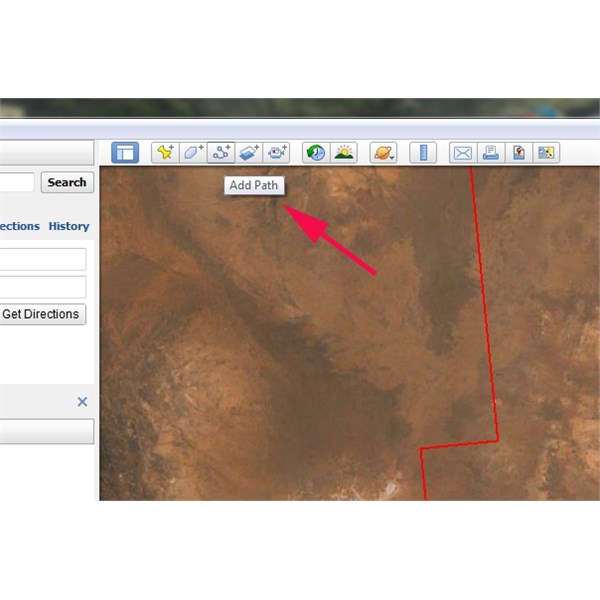
GE Path Tool
Click on the "Add Path" Icon and leave the properties box open while making your "path". You can change colour and width to suit under "Style, Color" tab and see length under "Measurements".
Like Google Maps you can't "get directions" automatically to many locations - I assume because the road/track isn't in their database (?) so you have to manually add it. Can get a bit painful for long sections, though depends on how accurate you want your planning to be (i.e. how many points you use to define path).
Cheers
Greg
| I sent one final shout after him to stick to the track, to which he replied “All right,” That was the last ever seen of Gibson - E Giles 23 April 1874 Lifetime Member
My Profile My Blog Send Message
Moderator |
FollowupID:
805082
Follow Up By: Member - eighty matey - Saturday, Dec 28, 2013 at 12:14
Saturday, Dec 28, 2013 at 12:14
Thanks Greg, I'll give it a go.
FollowupID:
805083
Reply By: Life Member - Fred B (ex-NT) - Saturday, Dec 28, 2013 at 12:33
Saturday, Dec 28, 2013 at 12:33
Hi Steve,
set up a google account (if you don't have one) then log in on google maps. You can add as many points, google
places and notes as you want. You can also export as a kml file.
regards
AnswerID:
523592
Reply By: Mick O - Saturday, Dec 28, 2013 at 12:49
Saturday, Dec 28, 2013 at 12:49
Steve,
I've just had a play around and managed to make a map with about 15
places and a line between the lot.
1. Open google maps (www.maps.google.com.au )
2. Open the "My Paces Tab" left hand side at the top next to the "get directions" tab
3. Hit the red "Make Map" button - this opens Google maps engine - lite in another window.
4. Select "Create a new map" - a new "Untitled Map" box opens above a zoomed out Australia. You will also see a little 6 button tool bar with a back and forwards arrow, a grab hand, marker, track and directions buttons. Zoom into a starting point for your map.
5. Name you map and then click on the "Add marker" button - Just like Google earth it will place a marker on the map. Name it and save it. Also name it uniquely like - Home - Start. You'll need to recognise it for the directions.
6. Go to the next way point on the map and do the same. Place, name and save a marker there. and so on and so on until you have your route sorted.
The map auto saves as you go along.
7 When finished, select the "Add directions" tab - far right of that little 6 button tool bar. A new window will open at the bottom of your marker list. Into "A" type your start marker. It should appear in a drop down menu for you - this is why you make it unique.
8. Do the same with the B - your destination. It will add a line to your map between the two points. If it doesn't match your markers, simply put the cursor on the line, hold down your left mouse key and drag it across to the roads so it finally does.
It auto saves. When next you go into "My Places" on Google, it should be there for you. You can add layers like printed directions as
well. Have a play. I did. Do a few small ones first to get the hang of it.
Cheers Mick
| ''We knew from the experience of well-known travelers that the
trip would doubtless be attended with much hardship.''
Richard Maurice - 1903Lifetime Member
My Profile My Blog Send Message |
AnswerID:
523593
Follow Up By: Mick O - Saturday, Dec 28, 2013 at 12:50
Saturday, Dec 28, 2013 at 12:50
Yep I just read Fred's post. You may need a Google account. I have one so that didn't occur to me at the time.
Cheers Mick
| ''We knew from the experience of well-known travelers that the
trip would doubtless be attended with much hardship.''
Richard Maurice - 1903Lifetime Member
My Profile My Blog Send Message |
FollowupID:
805085
Follow Up By: Member - eighty matey - Saturday, Dec 28, 2013 at 14:30
Saturday, Dec 28, 2013 at 14:30
Thank you for the info.
I appreciate the detail.
I just had a play with it and it was starting to happen.
I'd better finish working outside and do it tonight.
I'm working out our trip up to The Gulf and back to the Centre.
I'm going to write up a spreadsheet to organise time and money and thought a map would work
well with it.
Thanks again,
Steve
FollowupID:
805091
Follow Up By: Sand Man (SA) - Sunday, Dec 29, 2013 at 16:36
Sunday, Dec 29, 2013 at 16:36
Hi Mick,
Have spent some time playing around with Google Maps.
On a trip I am planning next year, everything worked OK until I entered -
El Questro to
Drysdale River Station (
Gibb River Road) and it spat the dummy stating "couldn't find a Route".
I could do what Greg suggested and manually add a path, but this would be tedious as much of our trip is along the GRR with stopovers along the way.
Oh how good would a planning function be in OziExplorer!!!
FollowupID:
805142
Reply By: Member - Boobook - Sunday, Dec 29, 2013 at 06:34
Sunday, Dec 29, 2013 at 06:34
I recently swapped over to bing maps from google for making online
routes.
While google's photos are clearer, the detail in the maps of bing seems a lot better.
For example Bing shows the tracks across the simpson and allows you to route along them. If you start at Mt Dare and end at
Birdsville it will go along the French line etc. However Google insists that you go via the Plenty Rd.
Also there is an export to GPX button to use it on your gps. While you can exporet google to KML it usually needs further processing to GPX.
AnswerID:
523610
Follow Up By: Member - eighty matey - Sunday, Dec 29, 2013 at 08:30
Sunday, Dec 29, 2013 at 08:30
Thanks Boobook.
I'll have a play around with both Google and Bing today.
Steve
FollowupID:
805109